


The Wallet section (Fulfillment > Wallet) serves as the centralized financial hub in MerchFox. It tracks available working capital, displays real-time transaction history, and handles funds deposit requests to ensure uninterrupted order processing.
Wallet Management & Top-Up Workflow
Wallet Management & Top-Up Workflow
Wallet Dashboard Metrics
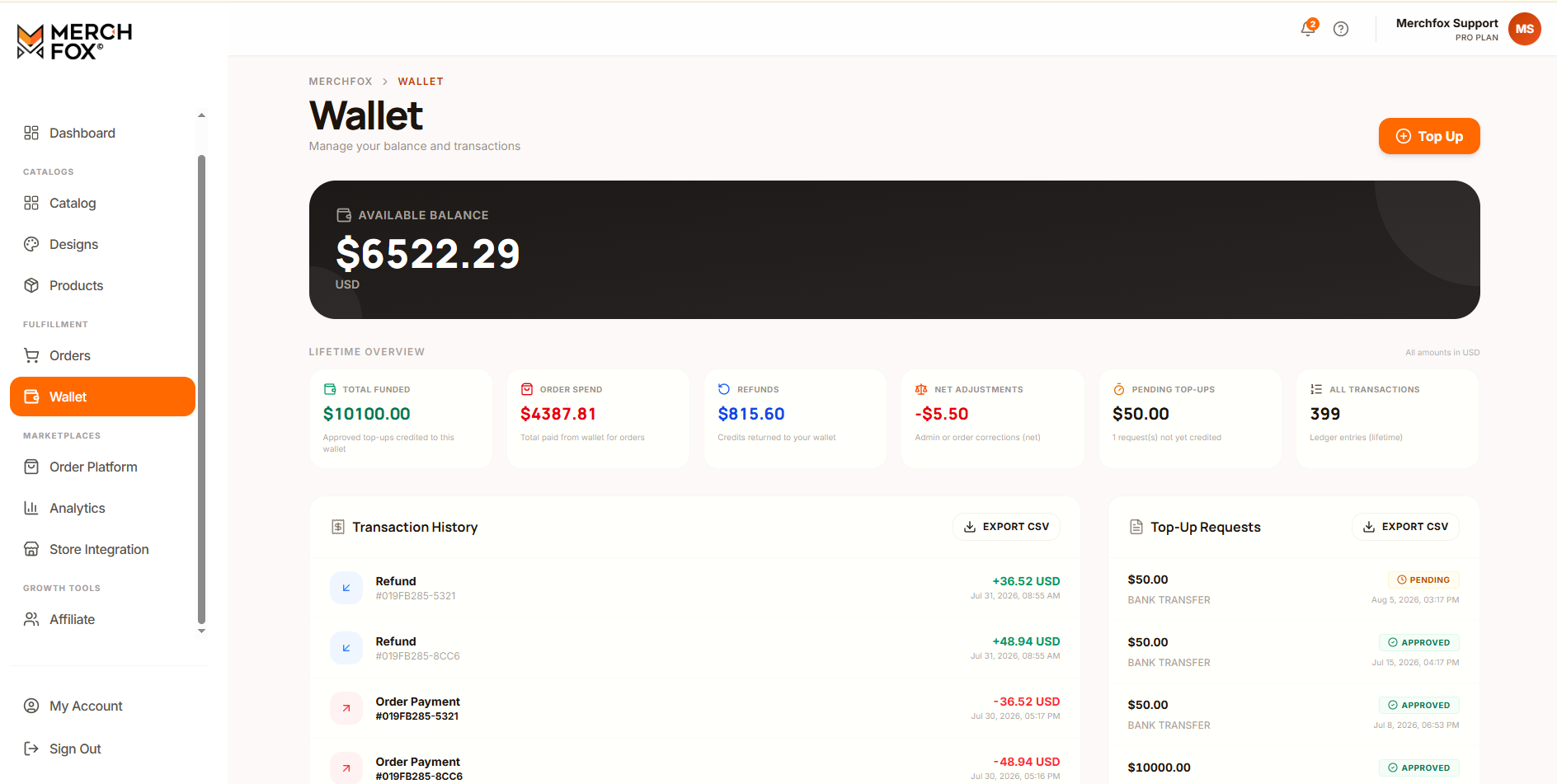
The main Wallet view provides a high-level summary of your workspace financial health:
Available Balance: Real-time spendable funds available for order submissions and service fees.
Total Funded: Lifetime aggregate sum of approved top-up requests credited to the account.
Order Spend: Cumulative total deducted for submitted fulfillment orders.
Refunds: Credits returned to your wallet balance from canceled orders or adjustments.
Net Adjustments: Balance corrections or manual administrative line items.
Pending Top-Ups: Active deposit requests awaiting administrative approval.
All Transactions: Total count of financial ledger log entries.
Step-by-Step Top-Up Request Flow
To add funds to your wallet balance, click the Top Up button located in the top-right header of the Wallet page.
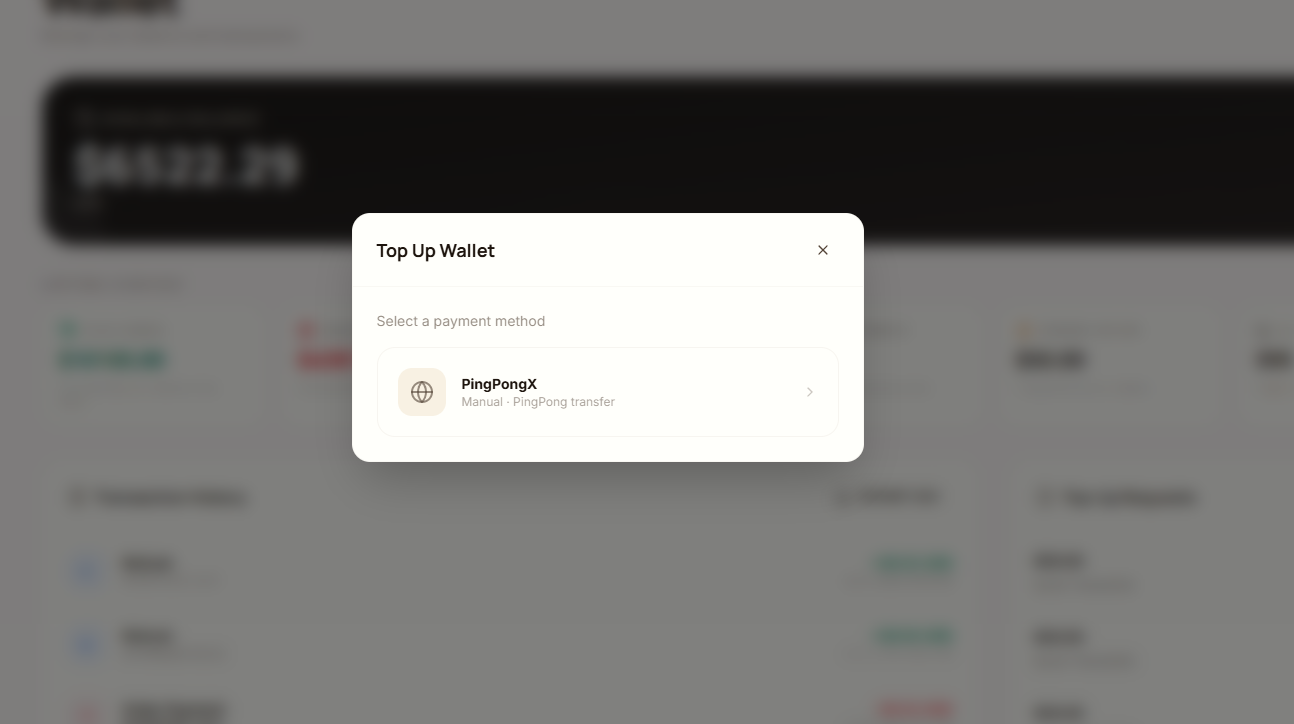
Step 1: Select Payment Method
Choose your preferred funding channel (e.g., PingPongX - Manual PingPong transfer).
Payment Method
Payment Method
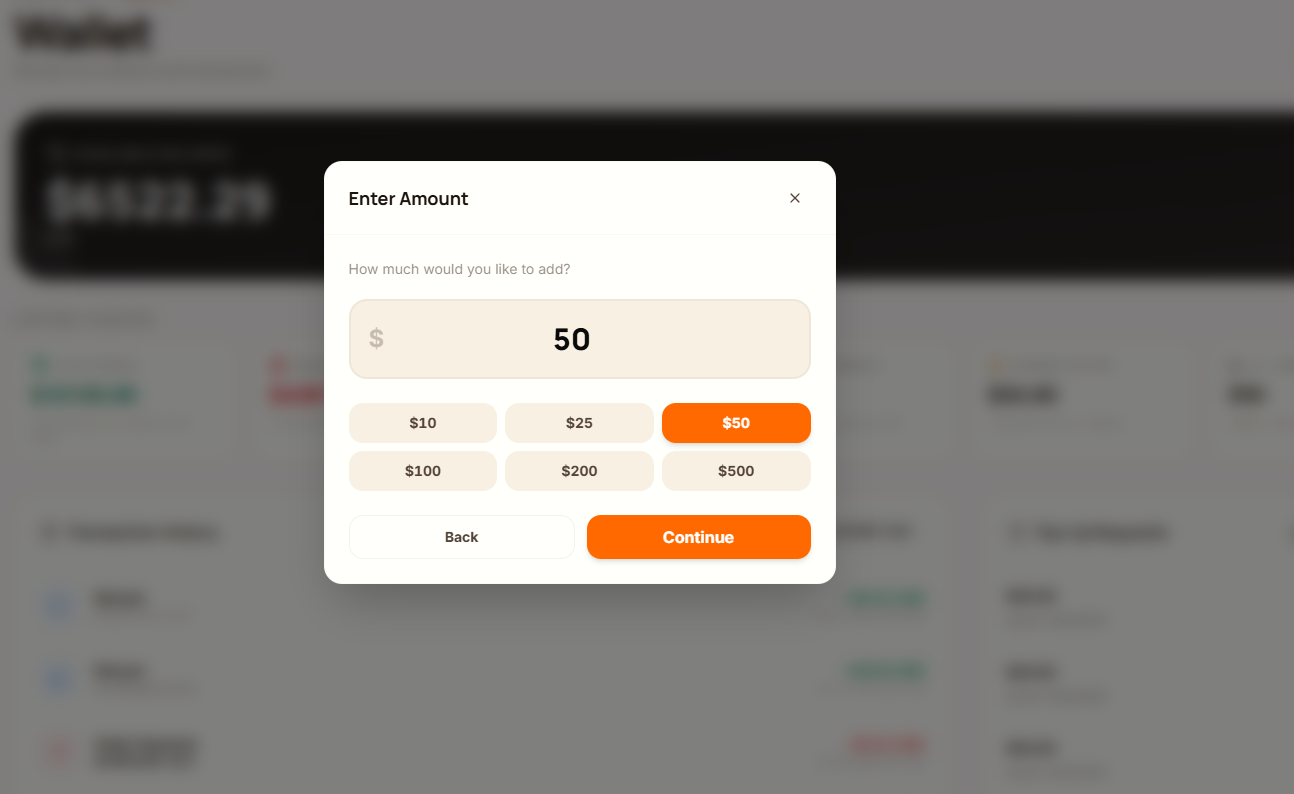
Step 2: Enter Top-Up Amount
Select a pre-configured funding amount ($10, $25, $50, $100, $200, or $500) or input a custom value.
Click Continue to move to the payment transfer parameters.
Enter Top-Up Amount
Enter Top-Up Amount
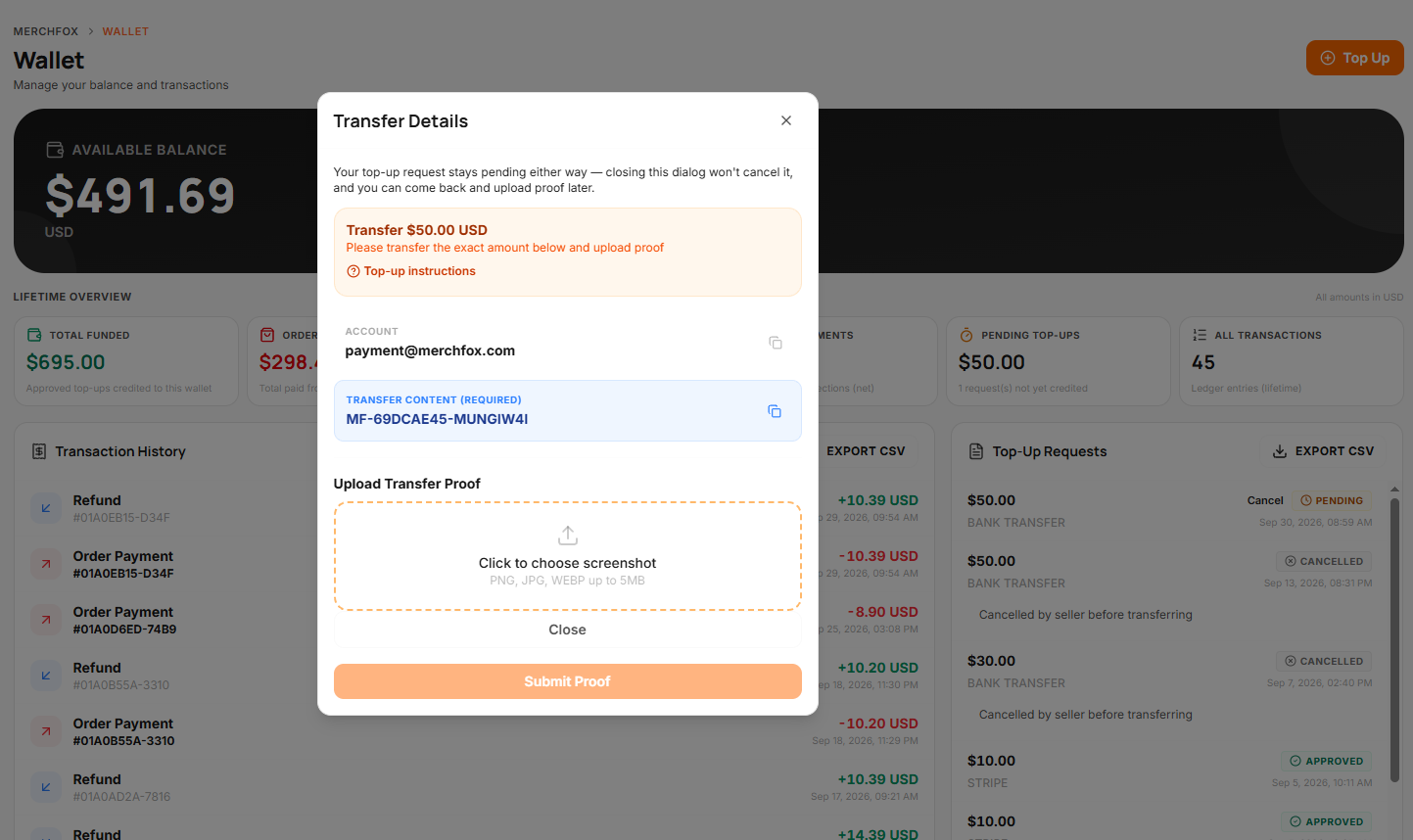
Step 3: Transfer Details & Verification
Execute the transfer using the generated deposit details:
Recipient Account: Copy the exact recipient email/account address provided on screen.
Transfer Content (Required): Copy and paste the unique transfer memo code (e.g.,
MF-6A38A0FB-MSFTD87P). Crucial: Including this exact reference string in your transfer memo ensures accurate transaction matching.Upload Transfer Proof: Upload a confirmation screenshot (PNG or JPG format, up to 10MB) verifying the completed transfer.
Submission Options: Click to finalize the upload or select Done, I'll upload later to submit the proof at a later time.
Verification & Approval Status
Once submitted, top-up requests follow an administrative verification workflow:
Pending Status: Requests appear under Top-Up Requests as PENDING. Funds are not credited immediately upon transfer.
Admin Review: MerchFox administrators verify incoming bank/transfer notifications against your uploaded proof and required Transfer Content code.
Approved Credit: Upon approval, the status changes to APPROVED, and the requested amount is credited directly to your Available Balance.
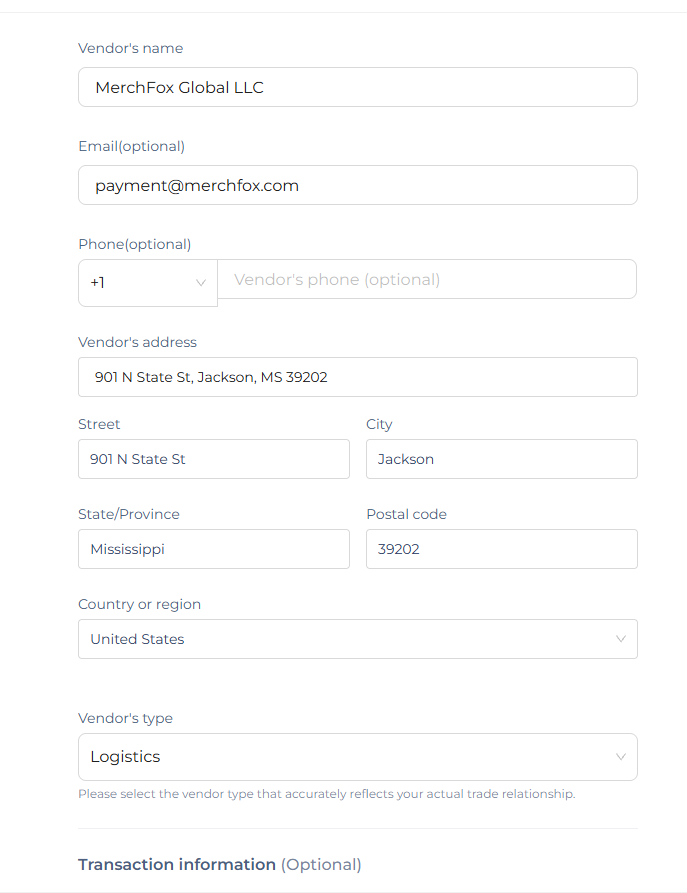
How to Top Up via Your PingPongX Account for the First Time
For your first top-up, you can enter the information as follows:
Vendor's Name: MerchFox Global LLC
Vendor's Address: 901 N STATE ST STE N, JACKSON, MS 39202
Location: United States
Vendor Type: Logistics
Other Information: You may enter any relevant information as required.
Once all the required fields have been completed, you can proceed with the top-up.
Frequently Asked Questions
Why is my top-up balance not updating immediately?
Manual top-ups (such as PingPongX transfers) require administrative verification. Funds are added to your Available Balance once an admin reviews and approves your submitted transfer proof.
What happens if I forget to include the Transfer Content string?
Omitting the required
MF-memo code can delay processing. If omitted, contact support with your transaction reference ID and proof of transfer for manual reconciliation.
Was this article helpful?
Let us know so we can continue improving our help center.