


If you have forgotten your password or are having trouble logging into your MerchFox account, you can easily reset your password using your registered email address.
Step-by-Step Password Reset Guide
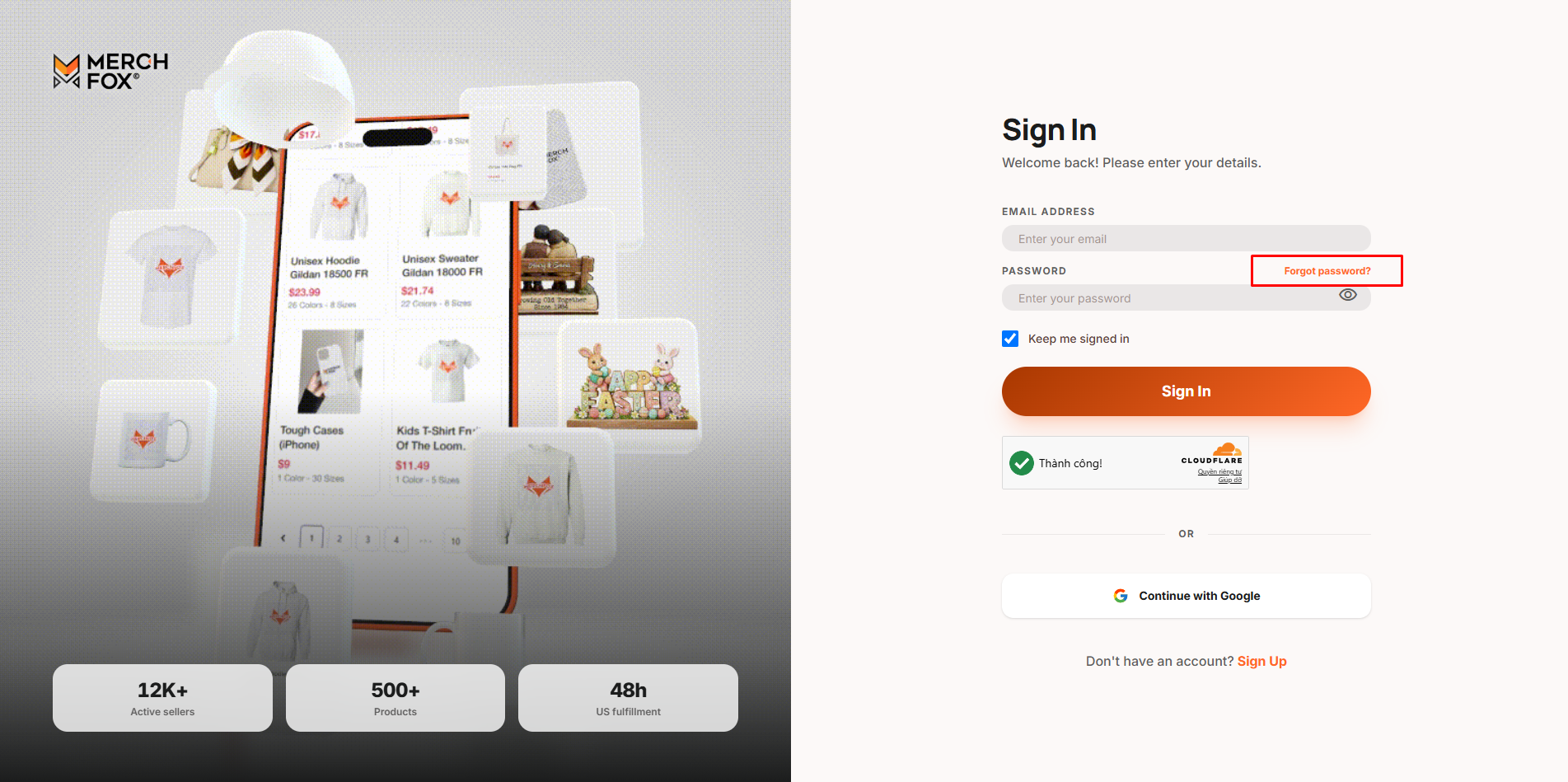
Step 1: Navigate to the Reset Password Page
Go to merchfox.com and click Sign In.
On the login screen, click the Forgot Password? link located below the password input field.
Step 2: Submit Your Registered Email
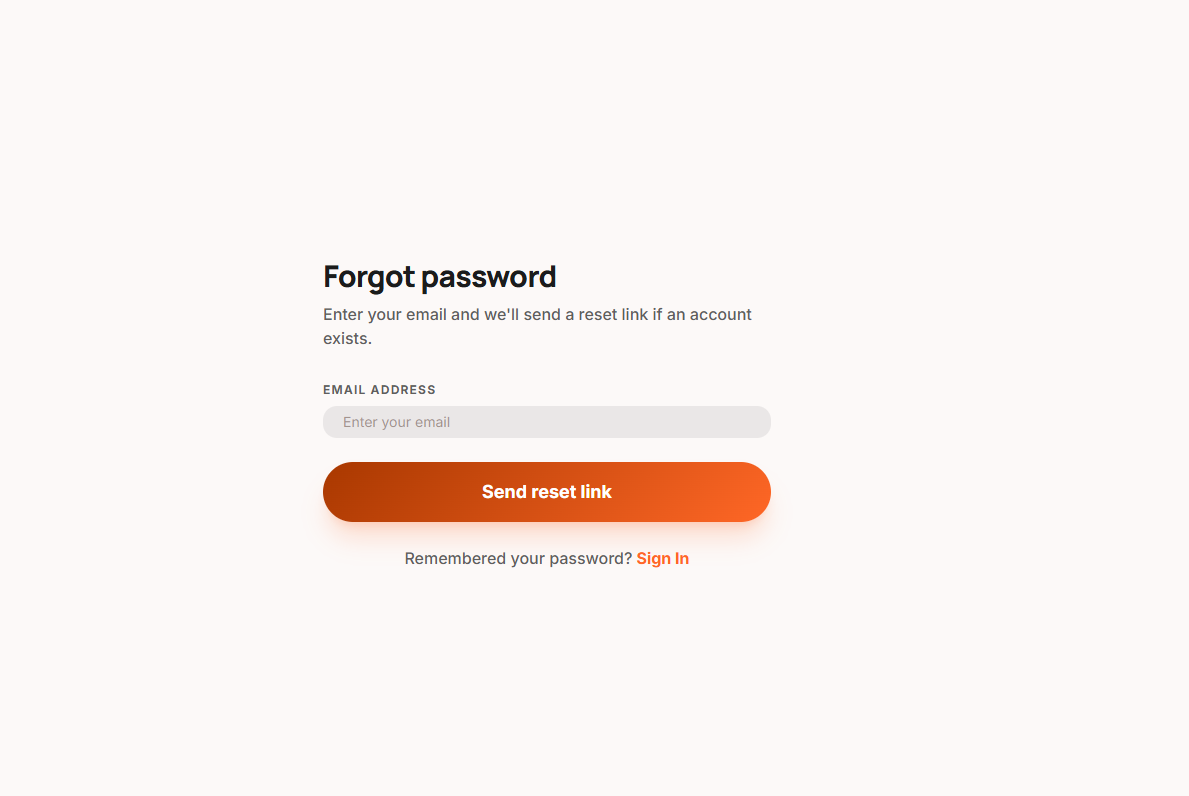
Enter the Email Address associated with your MerchFox account.
Complete any security verification (CAPTCHA) if prompted.
Click Send Reset Link (or Reset Password).
Step 3: Check Your Inbox
Open your email inbox and look for a message from MerchFox Support with the subject line "Reset Your MerchFox Password".
Click the Reset Password link inside the email.
Note: Password reset links are time-sensitive for security reasons and will expire after 30 minutes. If the link expires, simply request a new one by repeating Steps 1 and 2.
Step 4: Create a New Password
Once redirected to the security page, enter your New Password.
Re-enter the password in the Confirm New Password field.
Click Update Password (or Save New Password).
You can now log in to your MerchFox dashboard using your new credentials.
Troubleshooting & Important Notes
Signed up with Google?
If you originally registered your account using Continue with Google, you do not have a traditional password stored on MerchFox. Simply click Sign In with Google on the login page to access your account.
Didn't receive the reset email?
Check your Spam, Junk, or Promotions folder.
Verify that you entered the exact email address registered with MerchFox.
Wait 2–3 minutes, as network delivery delays occasionally occur.
Link Not Working?
Ensure you are clicking the link from the most recent email requested. Old reset links become invalid as soon as a new request is generated.
Need further assistance? Contact our support team directly at [email protected].
Was this article helpful?
Let us know so we can continue improving our help center.