

How to Manage Your Profile and Account Security
Keeping your personal details updated and monitoring your login security is crucial for protecting your MerchFox account, connected stores, and store funds. Learn how to update your profile, change your password, manage active sessions, and review your login history.
Part 1: Managing Your Profile Settings
Your profile information is used for account verification, billing receipts, and essential platform communication.
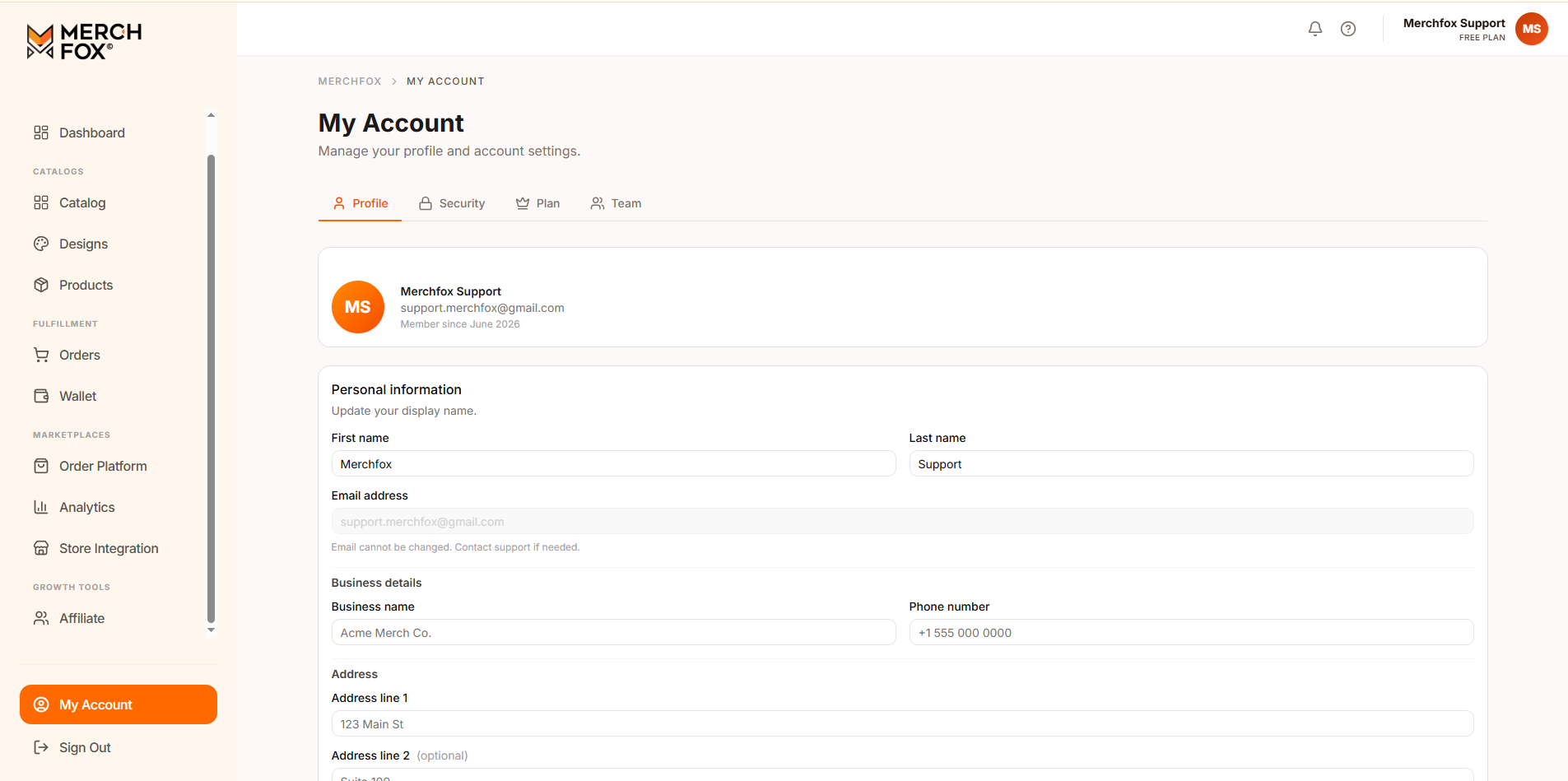
How to Update Profile Details
Log in to your MerchFox Dashboard.
Click My Account at the bottom of the left sidebar navigation menu.
Select the Profile tab.
Update the available fields as needed (such as Contact Name, Phone Number, or Business Address).
Click Save Changes to apply your updates.
Part 2: Password Management
We recommend updating your password periodically or immediately if you suspect unauthorized access to your account.
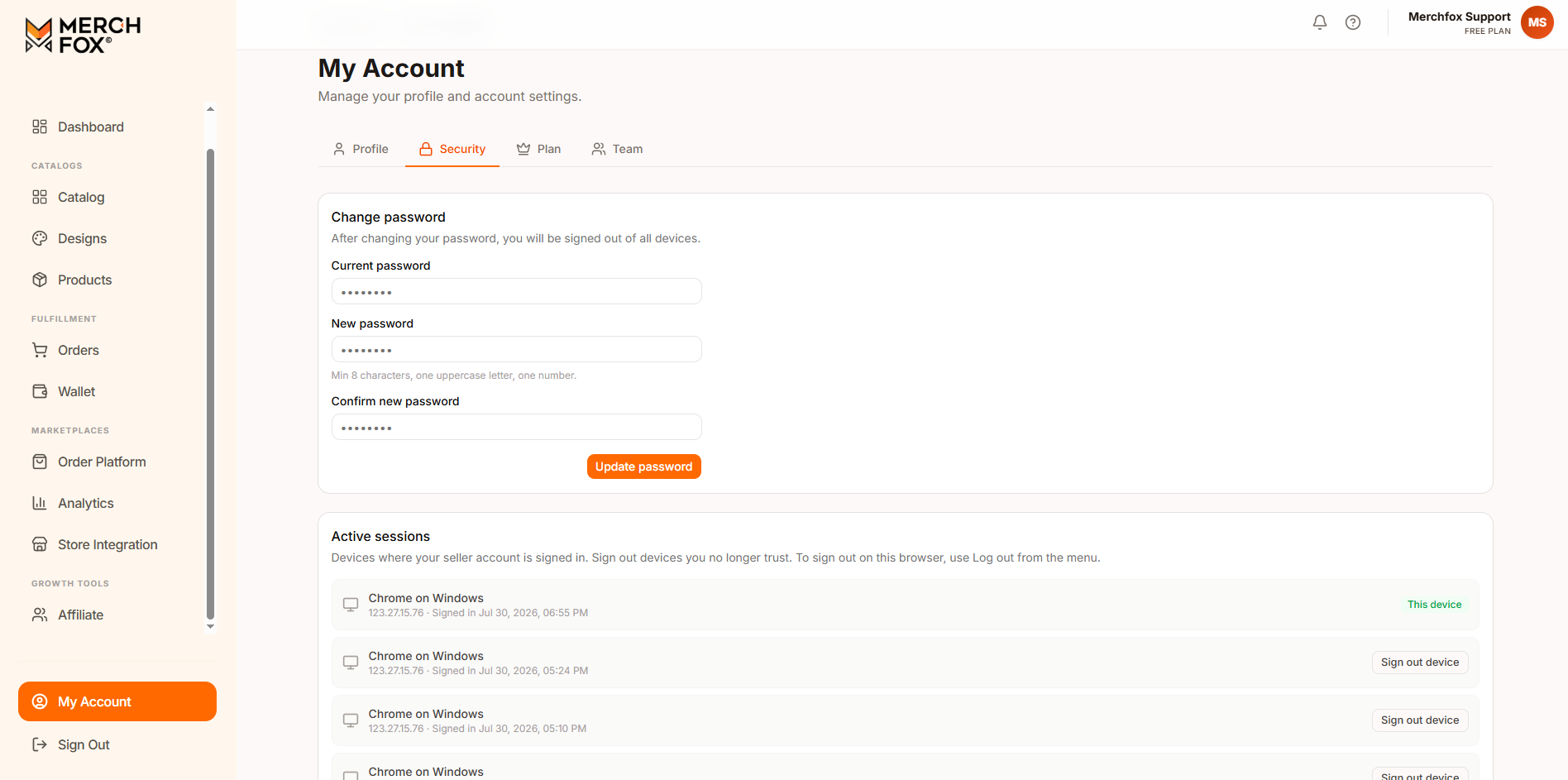
Navigate to My Account > Security.
Under the Change Password section:
Enter your Current Password.
Enter your New Password (Ensure it includes a mix of uppercase letters, numbers, and symbols).
Re-enter your new password in the Confirm New Password field.
Click Update Password.
Note for Google SSO Users: If you log in using Continue with Google, your password management is handled directly through your Google Account.
Part 3: Active Sessions Management
The Active Sessions section displays all browser instances and devices where your MerchFox seller account is currently signed in.
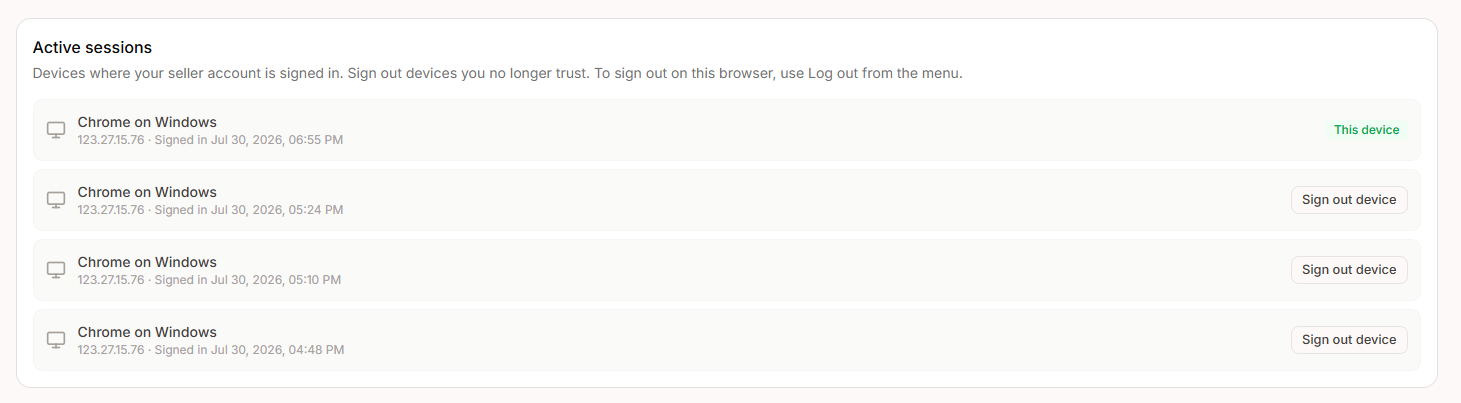
How to Review and Remote Sign-Out Devices
Go to My Account > Security and scroll down to Active Sessions.
Review the list of active devices, which shows:
Browser & Operating System (e.g., Chrome on Windows)
IP Address
Login Date & Time
Device Status (The device you are currently using will be labeled This device).
To log out from a remote device or a session you no longer trust, click Sign out device next to that specific session.
Note: To sign out of your current session on the active browser, use the Sign Out button at the bottom of the main left sidebar.
Part 4: Reviewing Login History
The Login History section provides a read-only audit log of recent sign-in attempts (both successful and failed) to help you monitor unauthorized access attempts.
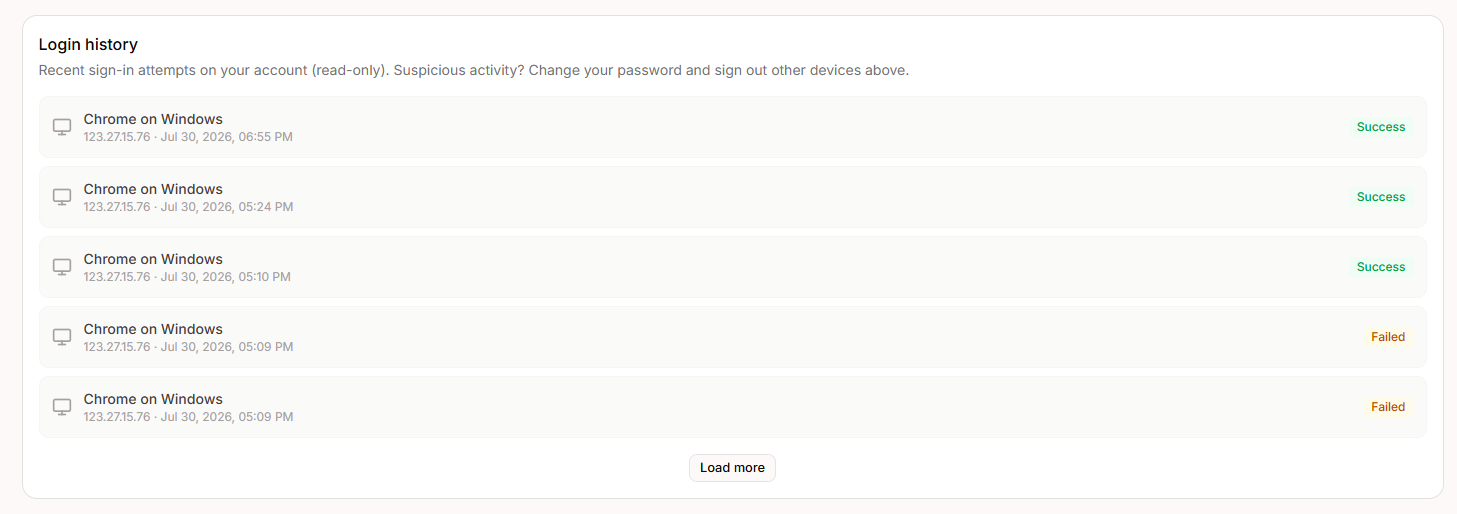
Go to My Account > Security and scroll to Login History.
Check the logs for:
Device & Browser Details
IP Address
Timestamp
Attempt Status: Labeled as Success (Green) or Failed (Orange/Red).
If you notice multiple Failed attempts or successful sign-ins from unrecognized IP addresses, immediately change your password and click Sign out device on all other active sessions above.
Frequently Asked Questions
Can I change my registered email address?
Primary email addresses cannot be modified directly from the dashboard for security and account ownership verification purposes. If you need to update your email, please contact [email protected].
What should I do if I notice suspicious activity in my Login History?
Immediately change your MerchFox password under My Account > Security and click Sign out device for all unrecognized active sessions. If you log in via Google, review your Google Account security settings as well.
Was this article helpful?
Let us know so we can continue improving our help center.