


The MerchFox Product Catalog gives you access to a wide selection of customizable print-on-demand (POD) items, including apparel, accessories, home decor, and seasonal items. This guide explains how to navigate the catalog, evaluate product specs, compare fulfillment providers, and select the best blank items for your store.
Step 1: Navigating the Product Catalog
Log in to your MerchFox Dashboard.
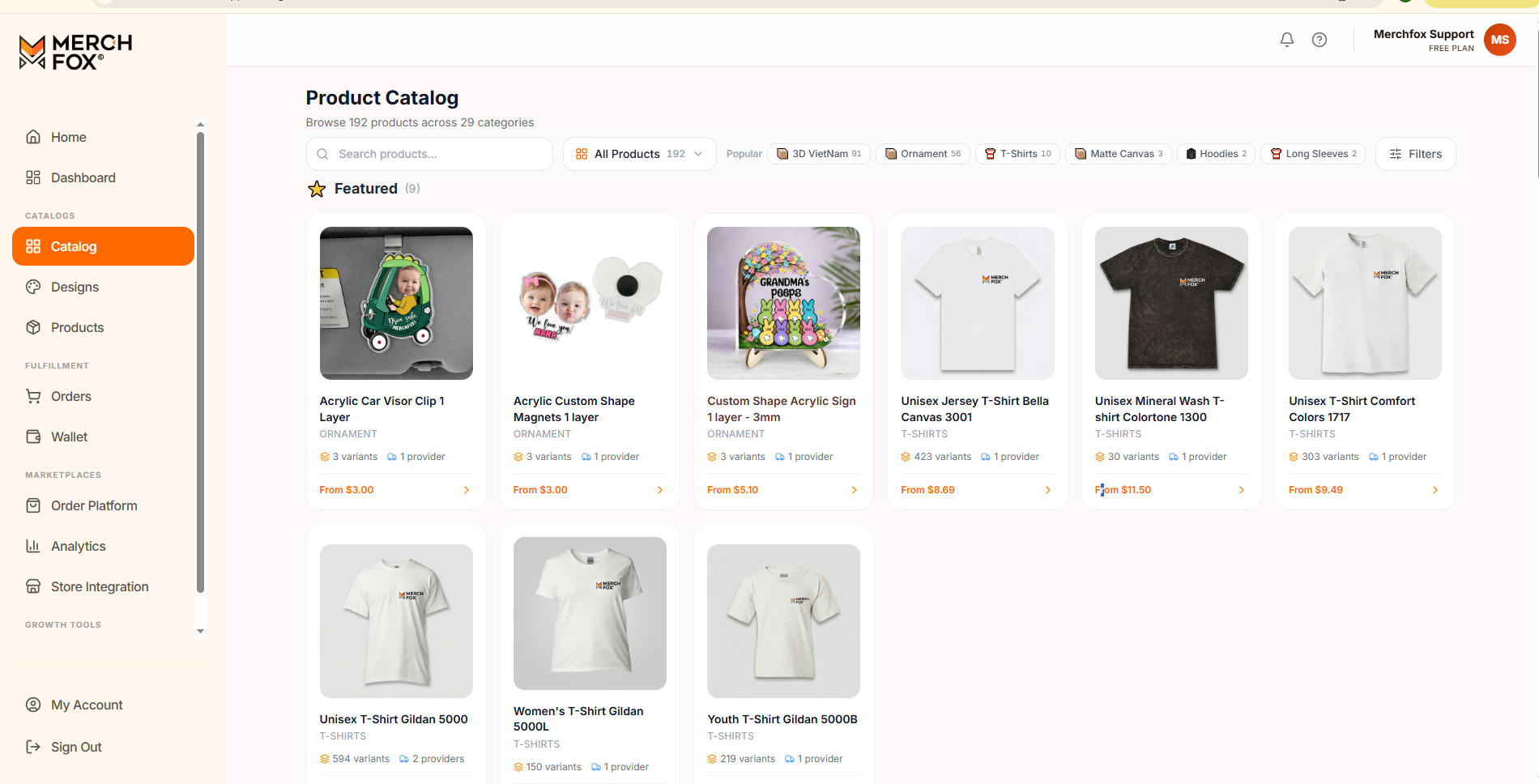
In the left navigation sidebar under CATALOGS, click Catalog.
Use the top navigation tools to locate items:
Search Bar: Search directly by keyword or blank product model (e.g., Gildan 5000, Bella Canvas 3000, Ornament).
Category Dropdown (
All Products): Filter items across 29 available categories (e.g., T-Shirts, Hoodies, Long Sleeves, Matte Canvas).Quick Category Tags: Click popular tags like 3D VietNam, Ornament, T-Shirts, Hoodies, or Long Sleeves to filter instantly.
Filters Button: Refine listings by specific criteria such as fulfillment location, price range, or print providers.
Step 2: Understanding Product Cards
Each card on the Catalog main page gives you a quick overview of key details before you click:
Product Title & Category: Shows the brand model name (e.g., Unisex T-Shirt Gildan 5000) and category tag.
Variant & Provider Counts: Displays the total available variants (colors/sizes) and the number of active print providers offering that blank.
Starting Price: Shows the lowest base manufacturing cost (e.g., From $5.80).
Step 3: Reviewing Detailed Product Specifications
Clicking on any product card opens its Product Details Page, which is divided into essential evaluation sections:
1. Print Areas & Mockup Gallery
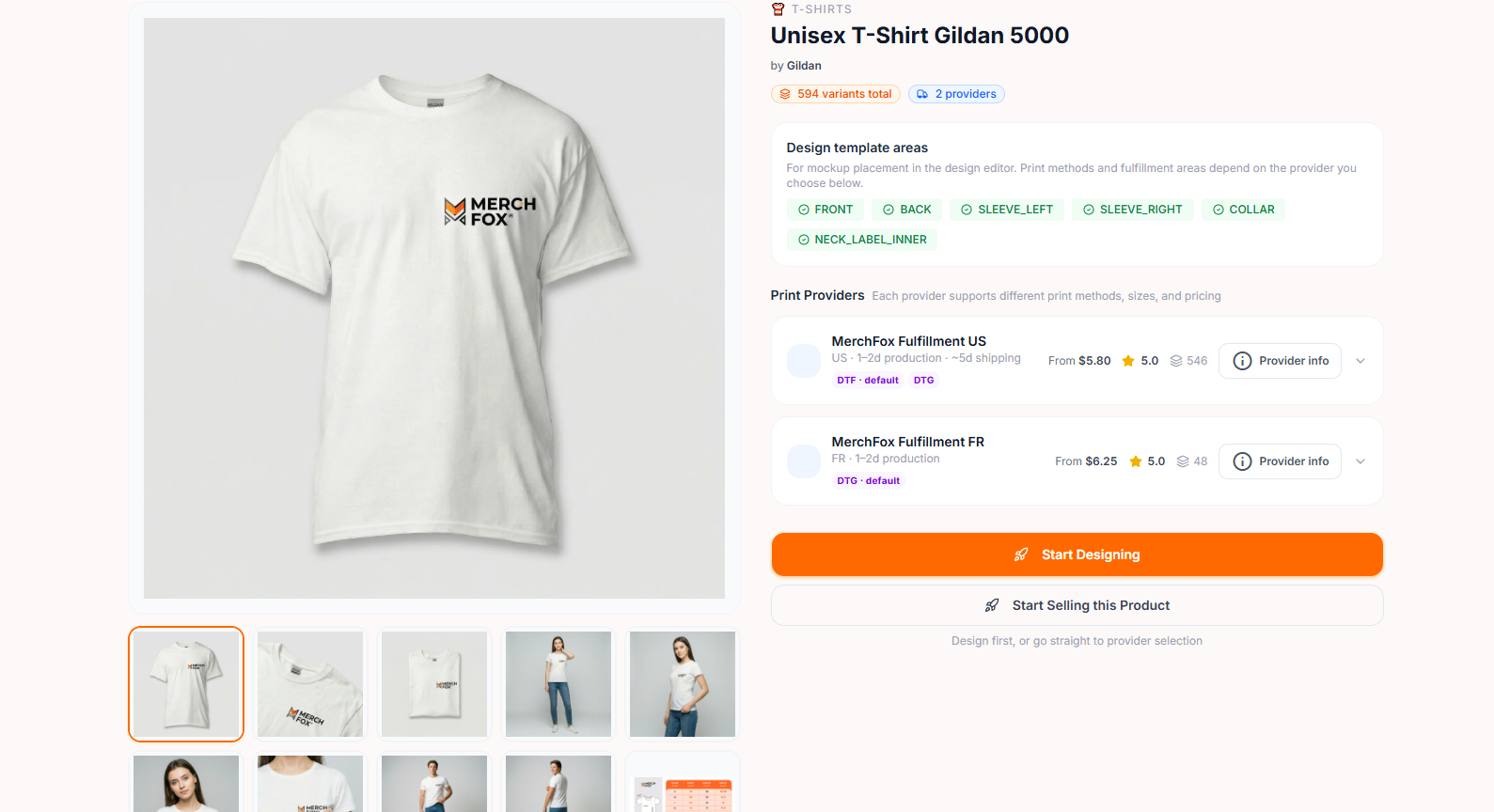
Mockup Images: Click through high-resolution mockups on the left to preview how graphics render on various angles and lifestyle models.
Design Template Areas: View supported printable zones for the item (e.g.,
FRONT,BACK,SLEEVE_LEFT,SLEEVE_RIGHT,COLLAR,NECK_LABEL_INNER).
2. Print Provider Selection
Different fulfillment providers offer unique pricing, production speeds, shipping locations, and printing methods:
Fulfillment Location & Speed: Displays provider region and estimated production timeline (e.g., US · 1–2d production · ~5d shipping).
Print Methods: Check available printing technologies such as DTF (Direct-to-Film) or DTG (Direct-to-Garment).
Print Area Dimensions: View maximum design dimensions per printable area (e.g., Front
15×17", Collar3.8×3.8").Base Pricing & Shipping: See baseline item costs (From $5.80) alongside estimated shipping fees (From $4.99).
Available Sizes & Colors: Review available sizing options (
Sthrough5XL) and color swatches (e.g., 74 Colors available).
3. Provider Info Modal
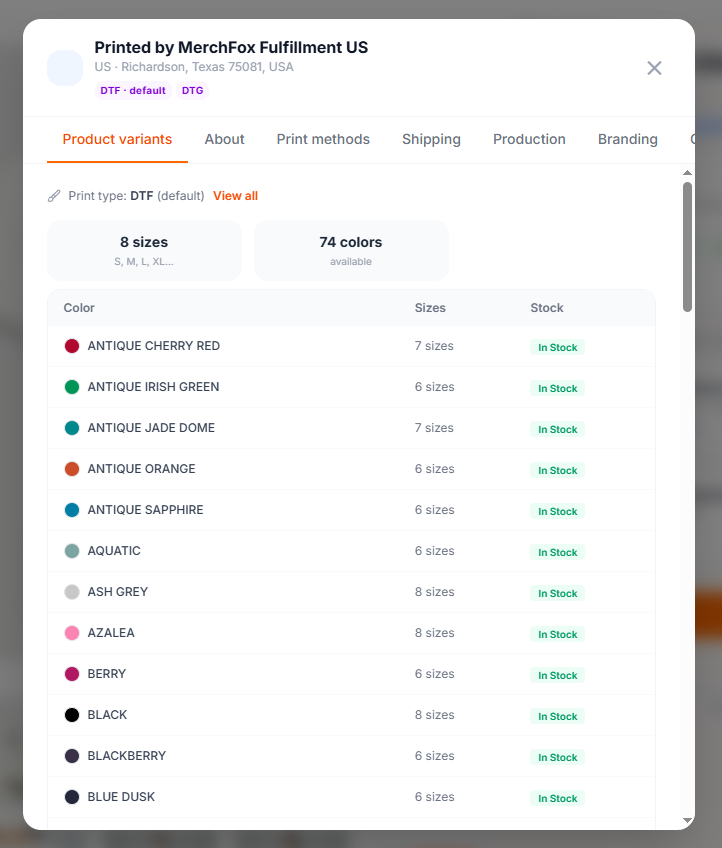
Clicking Provider Info opens an in-depth breakdown with dedicated tabs:
Product Variants: Live inventory status (
In Stock) for every color and size combination.Shipping & Production: Detailed regional shipping rates, delivery estimates, and production SLA metrics.
Branding Options: Check supported custom branding capabilities (such as inner neck label printing or custom packing slips).
4. Product Description (About this product)
Scroll down on the details page to review garment specs, fabric compositions (e.g., 100% U.S. cotton), certifications (e.g., OEKO-TEX), fitting notes, and care instructions to copy into your storefront descriptions.
Step 4: Proceeding to Product Creation
Once you have chosen your product and reviewed provider specs, you have two options:
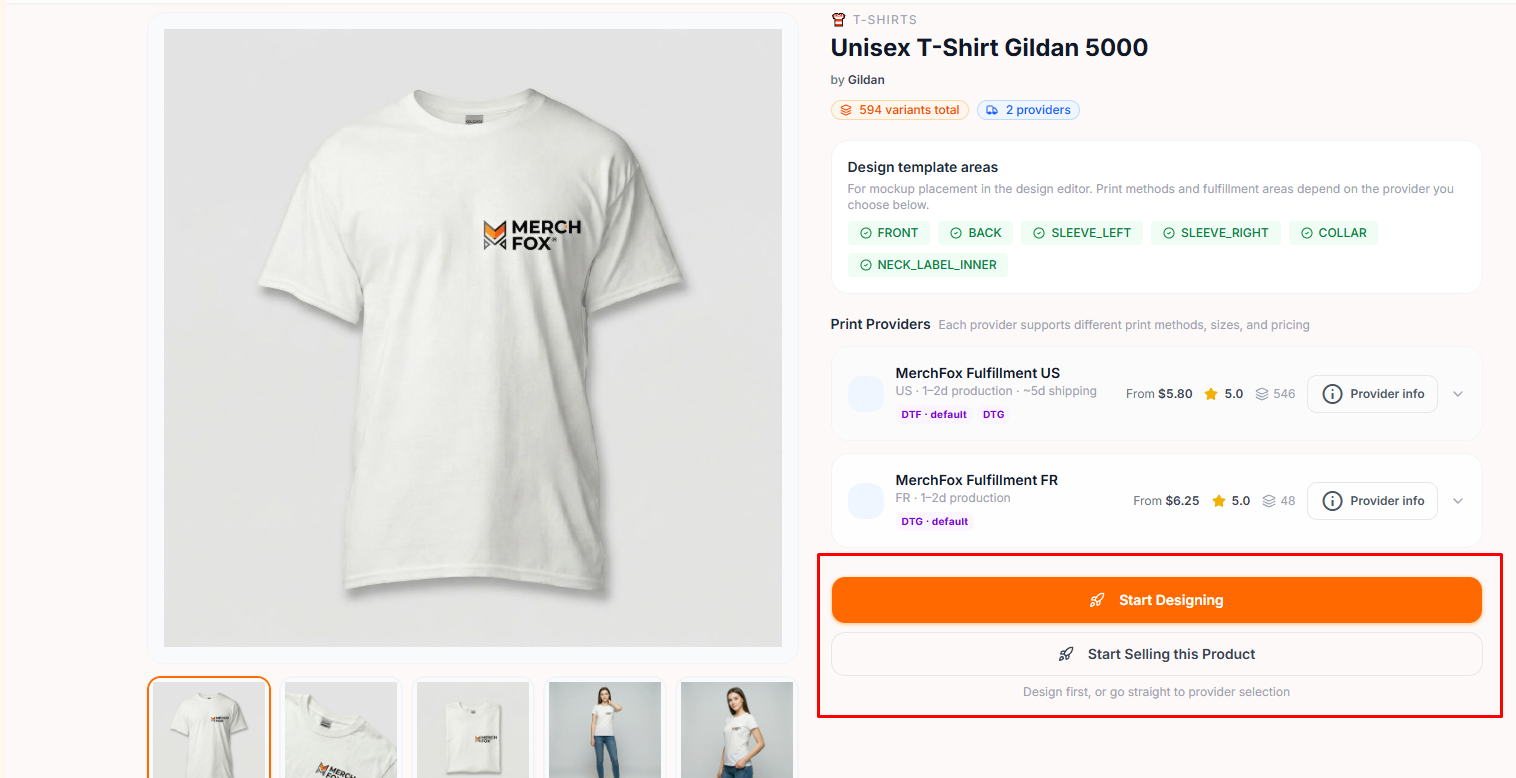
Start Designing: Opens the MerchFox online design editor immediately, allowing you to upload artwork, adjust placement on printable areas, and create mockups.
Start Selling this Product: Skip directly to provider selection if you already have saved designs ready in your Designs library.
Frequently Asked Questions
What is the difference between DTG and DTF printing?
DTG (Direct-to-Garment): Prints ink directly into garment fibers, ideal for detailed, full-color designs on 100% cotton.
DTF (Direct-to-Film): Uses a transfer film pressed onto fabric, yielding vibrant colors and high durability across a broader range of fabric blends.
How do I ensure a product is in stock before publishing?
Click Provider Info on the product detail page and check the Product Variants tab. MerchFox displays real-time stock indicators (
In Stock) for each color and size variant.
Was this article helpful?
Let us know so we can continue improving our help center.