


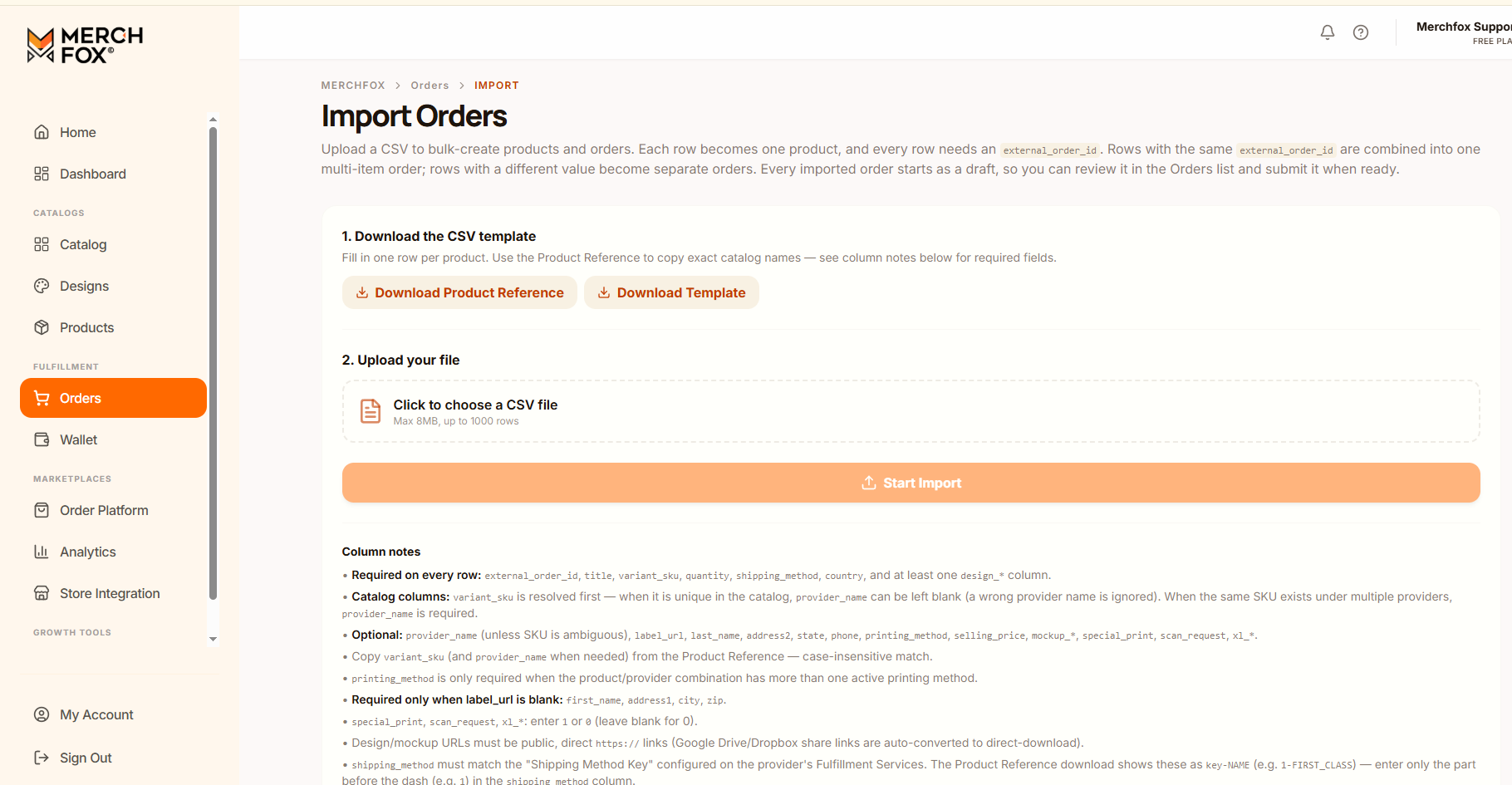
The CSV Bulk Order Import feature (Fulfillment > Orders > Import) allows sellers to upload spreadsheet files to batch-create draft orders and products simultaneously. This workflow is ideal for high-volume order processing, multi-channel fulfillment off-platform, or importing sales directly from custom spreadsheets.
Order Import Rules & Behavior
Understanding how MerchFox parses your imported file prevents grouping errors and ensures accurate line-item assembly:
Row-to-Product Relationship: Each individual row in the CSV represents a single product line item.
Order Grouping by
external_order_id: Rows sharing the exact sameexternal_order_idare automatically grouped together into a single multi-item order. Rows with distinct IDs become separate individual orders.Draft Generation: All successfully imported orders are created in Draft (Pending) status. This allows you to review line items, shipping destinations, and costs on the main Orders list before issuing payment and submitting to production.
Step-by-Step Import Process
1. Download Reference Assets
Before populating your spreadsheet, click the action buttons in Section 1 to retrieve the required templates:
Download Product Reference: Downloads a comprehensive master list of all valid catalog SKUs, provider names, active print methods, and shipping method key mappings.
Download Template: Downloads the standardized blank CSV template containing all pre-formatted column headers.
2. Upload and Execute
Click the file selection box under 2. Upload your file to select your prepared CSV file (Maximum file size: 8MB, maximum row capacity: 1,000 rows per import batch).
Click Start Import to begin the automated parsing and validation sequence.
Data Schema & Field Guidelines
To ensure smooth automated processing, adhere strictly to the following column requirements:
Mandatory Fields (Required on Every Row)
external_order_id: The external identifier used to group items into single or multi-item orders.title: Name of the item/product.variant_sku: The specific product SKU matched against the MerchFox catalog (case-insensitive).quantity: Number of units ordered.shipping_method: The shipping code integer or key prefix corresponding to the provider's fulfillment tier (e.g., enter1for key1-FIRST_CLASS).country: Destination country code or name.design_*: At least one public URL link pointing to high-resolution artwork (e.g.,design_front).
Conditional Address Fields (Required when label_url is empty)
If you are using MerchFox carrier shipping services rather than supplying your own label, the following address fields are required:
first_nameaddress1cityzip
Optional Fields
provider_name: Required only if the samevariant_skuexists under multiple print providers to resolve ambiguity.label_url: Direct URL to a custom pre-generated PDF shipping label. If provided, standard carrier shipping fees are waived.last_name,address2,state,phone: Recipient secondary details. For US orders,stateprefers 2-letter postal abbreviations (e.g.,IL,CA,NY), though full names like "Illinois" are auto-converted.printing_method: Required only if the selected SKU/provider combination supports multiple active print methods.selling_price: Customer retail price. If left blank, it defaults to double ($2\times$) the wholesale base cost.mockup_*: Direct URL links to rendered item preview assets.special_print,scan_request,x1_*: Boolean flags. Enter1for active or0/blank for inactive.
Image & Asset Link Requirements
All design and mockup URLs must be direct, publicly accessible https:// links. Standard share links from Google Drive or Dropbox are automatically converted by MerchFox into direct download links during processing.
Frequently Asked Questions
How do I combine multiple items into a single order?
Assign the exact same string value in the
external_order_idcolumn across all rows belonging to that order. MerchFox will group them into one order shipment.What happens if my SKU exists under multiple print providers?
If a SKU is unique across the entire platform,
provider_namecan be left blank. If the same SKU is fulfilled by multiple vendors, you must specify the exactprovider_namein that column to route production correctly.
Was this article helpful?
Let us know so we can continue improving our help center.