


The Create Manual Order workflow allows sellers to submit standalone fulfillment requests directly through the MerchFox portal. This feature is ideal for processing off-platform sales, replacement orders, custom samples, or VIP fulfillment without needing a connected e-commerce channel.
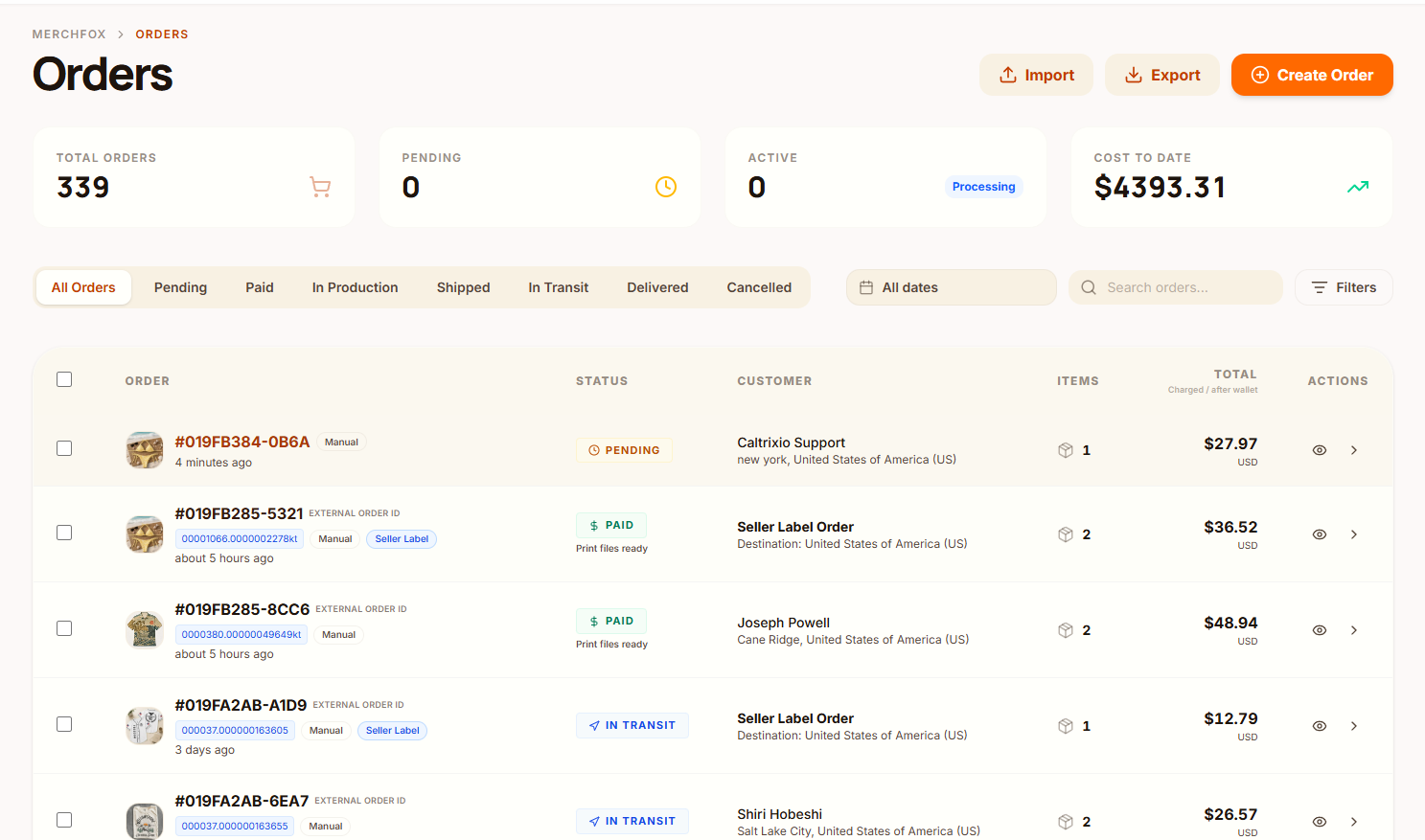
To initiate the wizard, navigate to Fulfillment > Orders and click Create Order in the top action bar.
3-Step Order Creation Wizard
The manual creation process consists of three sequential configuration steps:
Step 1: Add Products
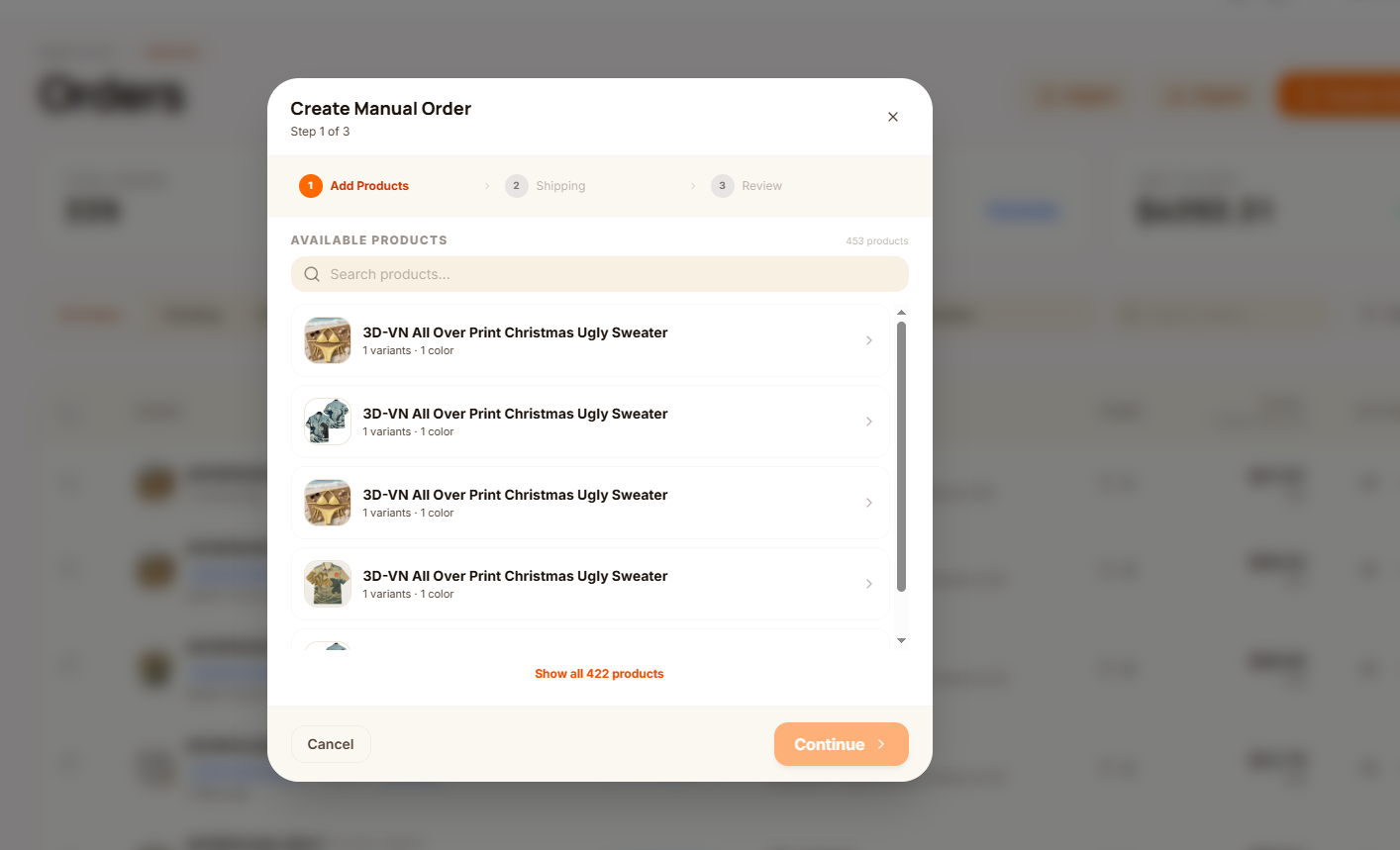
Available Products Catalog: Browse or search through your configured workspace catalog using the Search products... input bar.
Variant & Quantity Selection: Expand any item card to pick specific sizes, colorways, or options (e.g., 5XL · $10.19). Use the quantity toggles (
+/-) to specify line item counts.Selected Items List: View itemized subtotal costs in real time before proceeding. Click Continue to proceed to destination routing.
Step 2: Shipping & Address Parameters
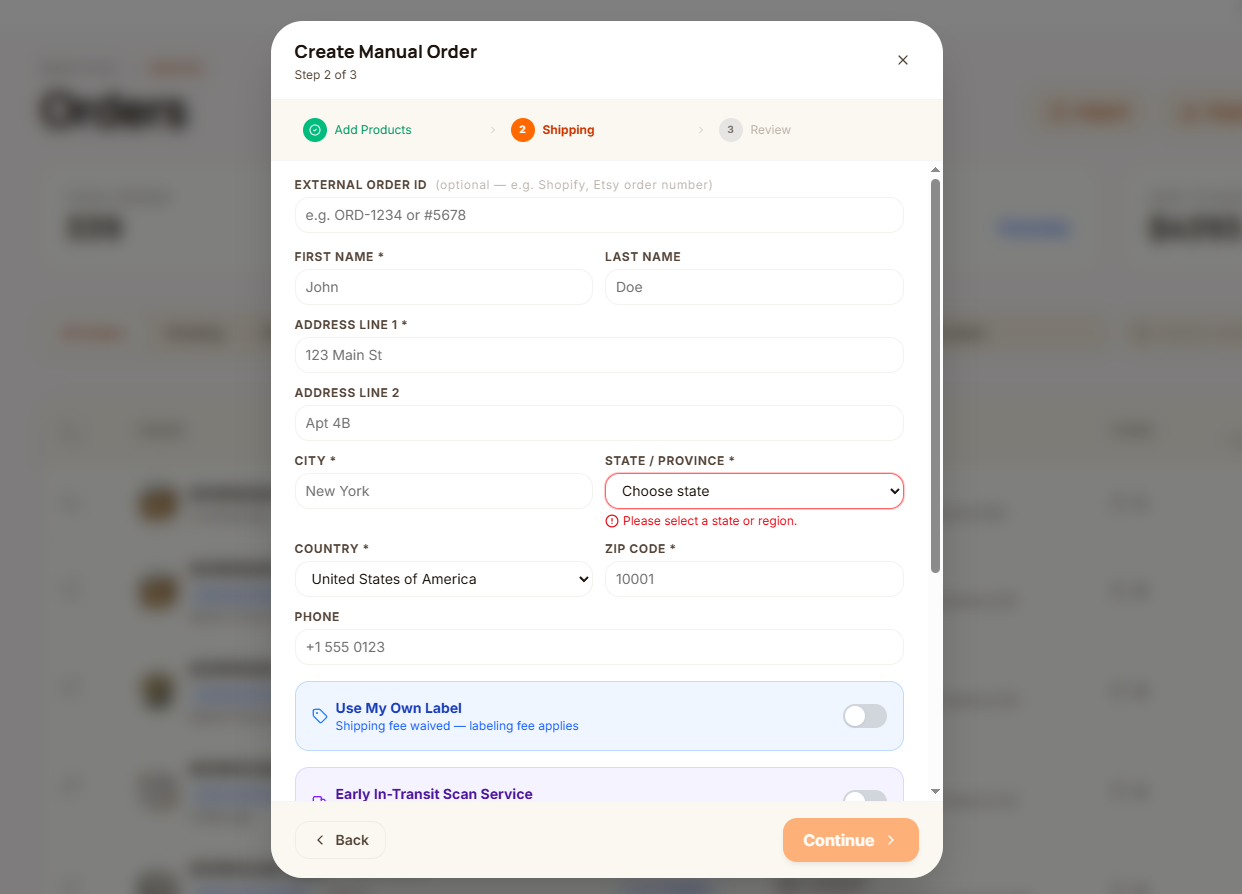
Enter customer metadata, recipient destination details, and fulfillment preferences:
External Order ID (Optional): Attach external reference tracking identifiers (e.g., Shopify or Etsy order numbers like
#ORD-1234) for cross-channel auditing.Recipient Information: Fill out mandatory fields including First Name*, Last Name, Address Line 1*, Address Line 2, City*, State / Province*, Country*, Zip Code*, and Phone.
Fulfillment Service Add-ons:
Use My Own Label: Enable this toggle if you are providing a custom shipping label. Standard carrier shipping fees are waived; only basic handling/labeling fees apply.
Early In-Transit Scan Service (Provider Dependent): Available for select print providers ($1.00 per order). Enable this toggle to accelerate initial carrier scan updates and generate early tracking events.
Shipping Method Selection: Choose available carrier tiers (e.g., First Class with itemized rates for base and additional items).
Estimated Cost Breakdown: Displays the dynamic Items subtotal and Shipping Cost calculations.
Step 3: Review & Financial Verification
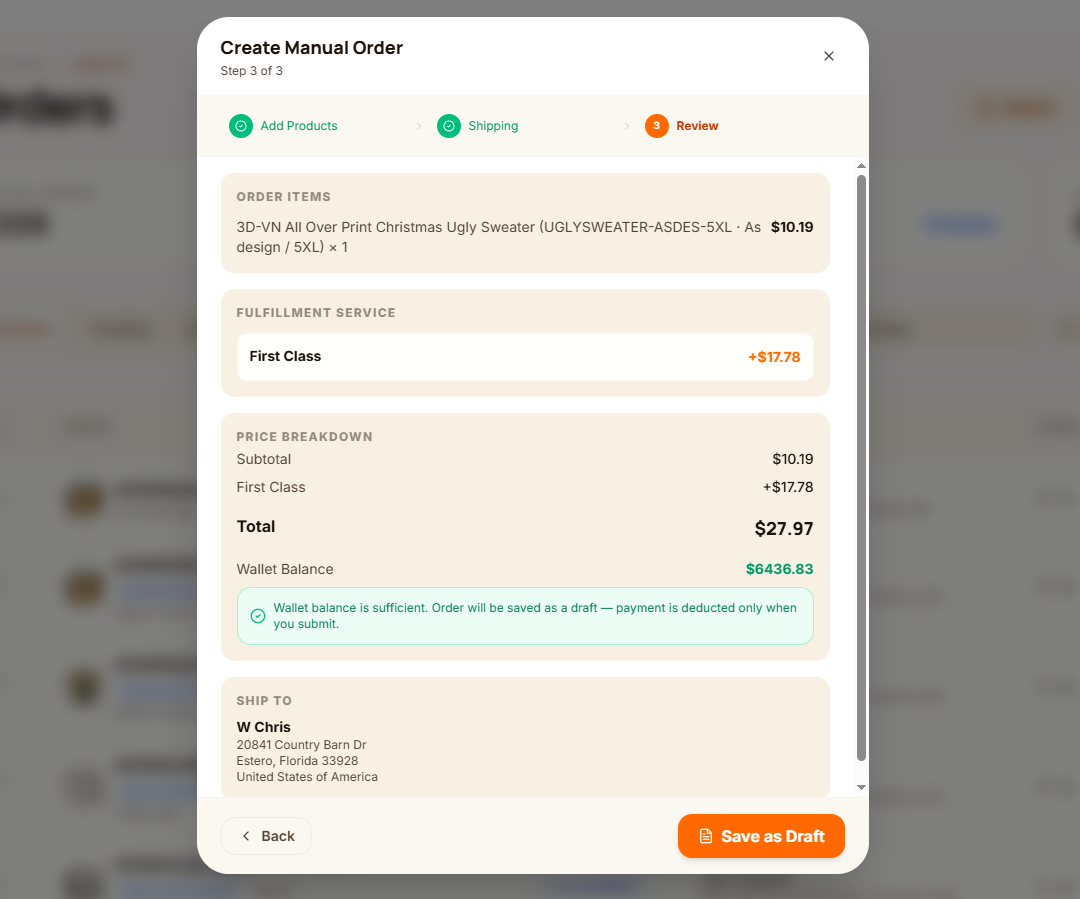
Order Items & Service Review: Verify all SKUs, print options, quantities, and chosen delivery methods.
Price Breakdown: Audits final costs against available account funds:
Subtotal + Shipping Fee = Total
Wallet Balance Display: Displays current account funds (e.g.,
$6436.83).Sufficient Balance Status: Confirms wallet adequacy with notice: "Wallet balance is sufficient. Order will be saved as a draft — payment is deducted only when you submit."
Ship To Summary: Final verification of recipient physical address parameters.
Save as Draft: Click to generate the pending order entry.
Draft Order Actions & Final Submission
Once saved, the order enters PENDING status and appears in your main order log marked with a Manual badge.
Expanding the pending draft line item exposes final execution controls:
Submit Order: Charges your wallet balance, locks design assets, and queues the order directly to production queues.
Delete Draft: Purges the unpaid manual draft without incurring any charges.
Frequently Asked Questions
When are funds deducted for manual orders?
Saving a manual order creates a PENDING draft at zero cost. Wallet funds are only deducted when you explicitly click Submit Order.
Can I attach custom shipping labels to manual orders?
Yes. Enable the Use My Own Label toggle during Step 2 to bypass standard system shipping fees and upload your pre-generated PDF label.
Was this article helpful?
Let us know so we can continue improving our help center.