


Integrating your WooCommerce store with MerchFox allows you to seamlessly sync customer orders and automate product fulfillment. Follow this guide to connect your WordPress/WooCommerce site to MerchFox.
Prerequisites Before Connecting
Before starting the integration, please ensure:
You have active administrator access to your WordPress dashboard.
WooCommerce is installed, activated, and properly configured on your site.
Your site has an active SSL certificate (HTTPS is required for secure API communication).
Pretty Permalinks are enabled in WordPress settings (
Settings > Permalinksset to anything other than Plain).
Step 1: Navigate to Store Integration
Log in to your MerchFox Dashboard.
On the left sidebar menu under MARKETPLACES, click Store Integration.
Under the CONNECT A PLATFORM section, select WooCommerce.
Click + Connect Store on the right side of the WooCommerce section.
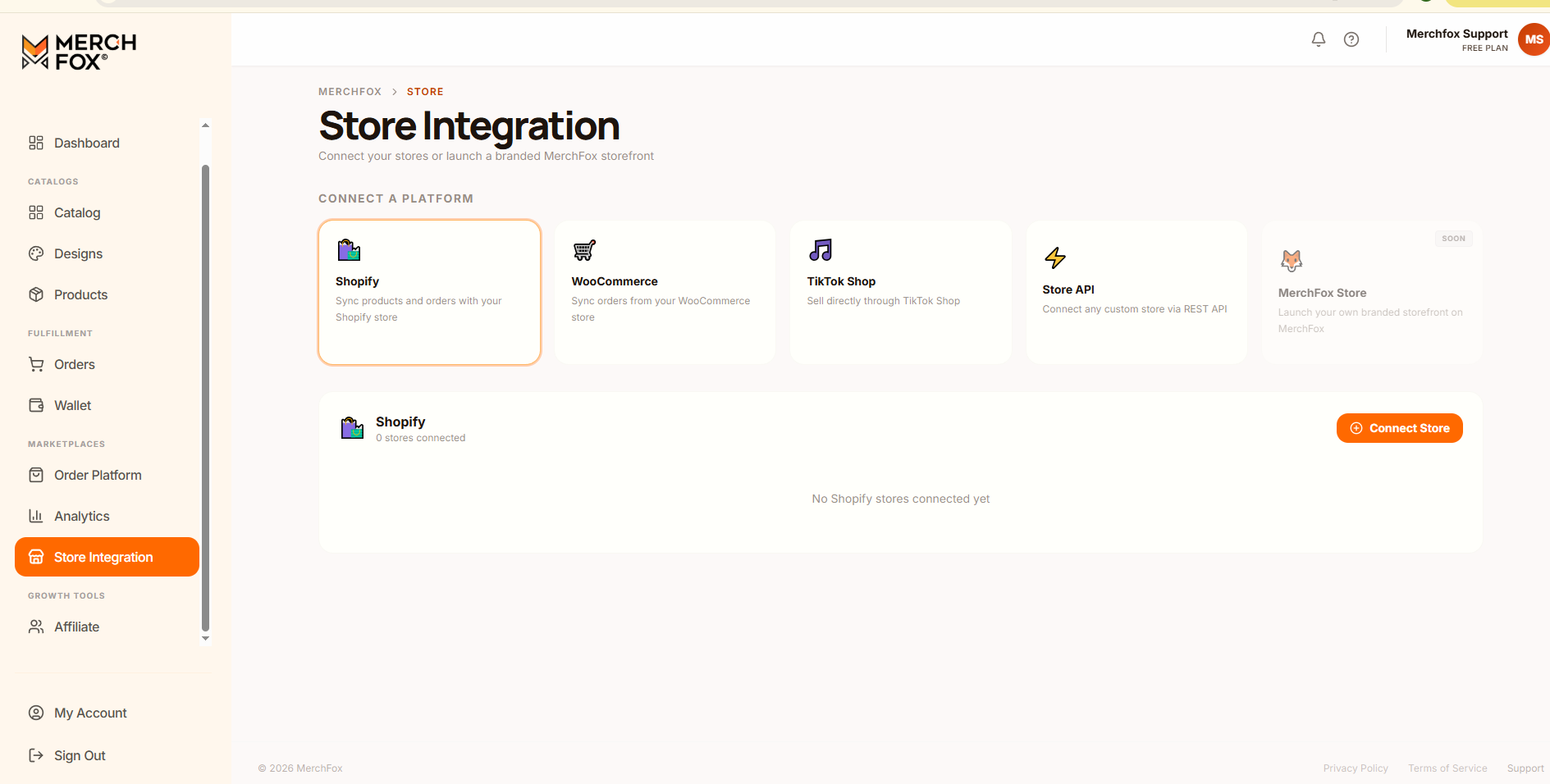
Step 2: Enter Your WooCommerce Store Details
In the Connect WooCommerce Store setup card, fill in the following details:
Store name (e.g. My Shop): Enter a clear display name for your shop to easily identify it within your MerchFox dashboard.
Store URL: Enter your full WordPress website domain including
https://(e.g.,[https://myshop.com](https://myshop.com)).
Double-check your store URL for accuracy, then click Authorize with WooCommerce.
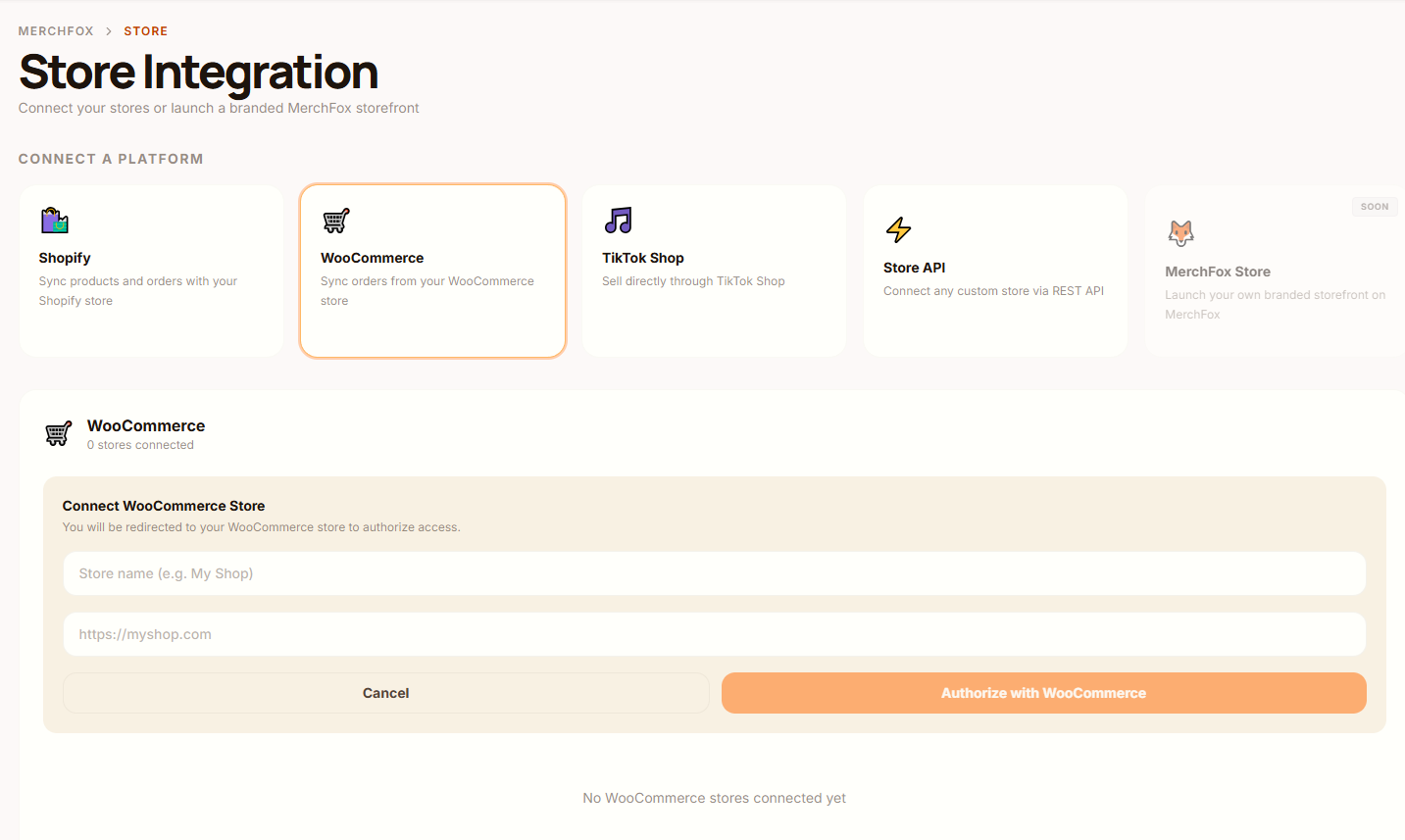
Step 3: Approve Access on WooCommerce
After clicking Authorize with WooCommerce, you will be redirected to your WooCommerce site's authorization screen.
If prompted, log into your WordPress administrator account.
Review the API access permissions requested by MerchFox (Read/Write permissions for Orders, Products, and Webhooks).
Click Approve (or Authorize) to grant MerchFox access.
Step 4: Complete Integration & Order Syncing
Once approved, you will be redirected back to the MerchFox Store Integration page:
Your store will now be listed under WooCommerce with an Active status.
MerchFox will automatically start listening for incoming orders to streamline your fulfillment process.
Frequently Asked Questions & Troubleshooting
Connection Failed / REST API Error?
Ensure your site is accessible over
https://and that your server/firewall (such as Cloudflare or security plugins) is not blocking external REST API requests.Can I connect multiple WooCommerce stores?
Yes! You can connect as many WooCommerce stores as needed by repeating the steps above for each domain.
How do I disconnect my WooCommerce store?
Go to Store Integration > WooCommerce in MerchFox and click Disconnect, or revoke the REST API key directly inside your WordPress Admin panel under WooCommerce > Settings > Advanced > REST API.
Was this article helpful?
Let us know so we can continue improving our help center.